
The Dash
The Dash is vrOS’s own panel. It is where you manage overlays, read performance, fix your play space, and change settings. It is a world overlay like any other: 1.2 m wide, landing 1 m in front of you and 10 degrees below your gaze.
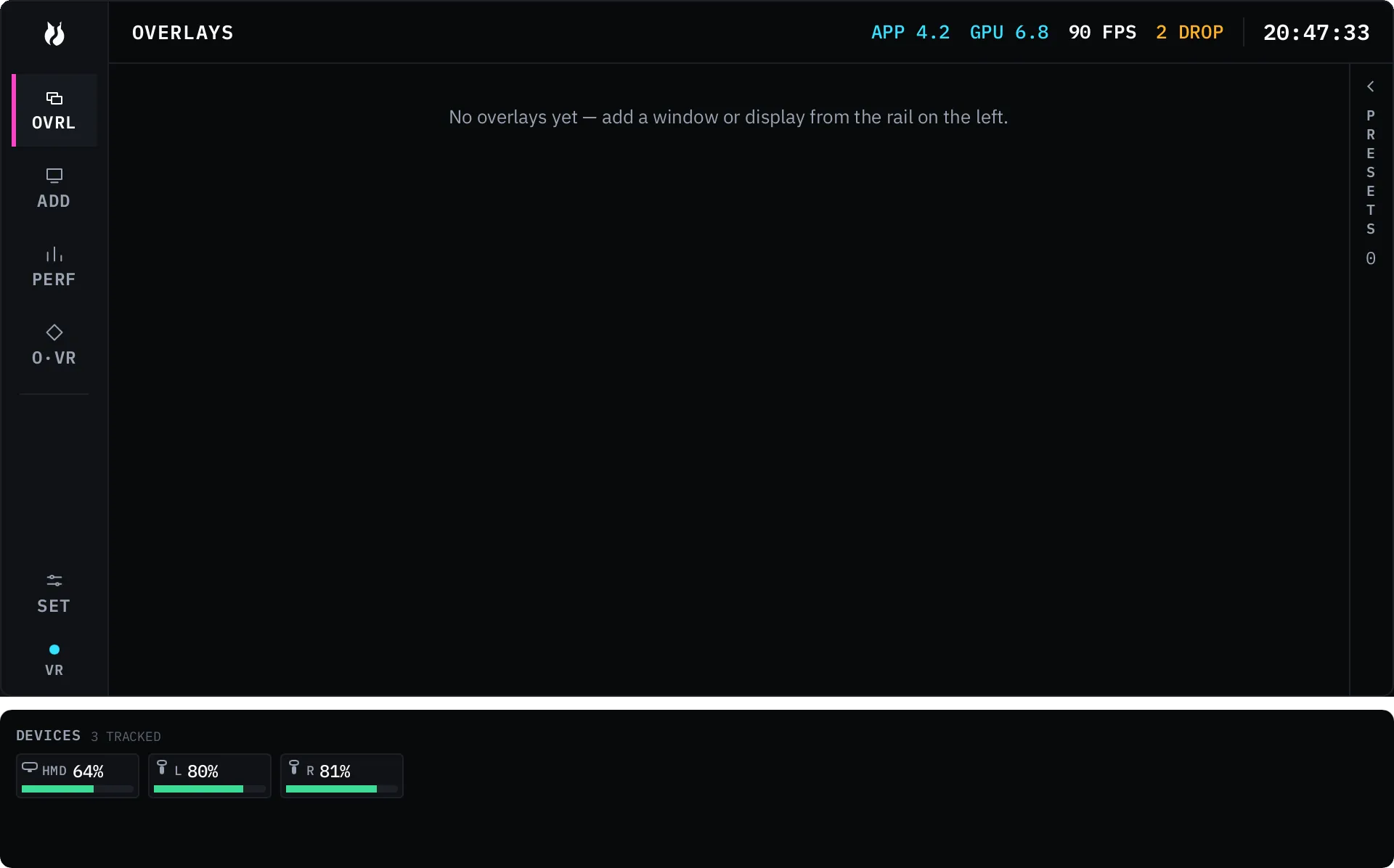
It is up when vrOS starts. You do not have to know a binding to find your Dash — the binding is how you put it away.
Opening and closing it
Section titled “Opening and closing it”One controller input toggles overlays. A hand pose held on your other hand decides what it toggles.
| What you do | What happens |
|---|---|
| Double-press the summon button | Hides or shows every overlay |
| Hold the Dash pose, then double-press | Hides or shows the Dash alone |
Out of the box the summon is a double-press of A on the right controller on Index, Oculus Touch, and Virtual Desktop hand controllers. Vive wands have no face button, so it is the right menu button instead. Left A (or the left menu button) is the same gesture for the keyboard.
The default dash pose is a left-hand finger-gun — index and thumb out. Without finger tracking it resolves to grip held with your thumb off a button.
Two rules keep the gesture from stranding you. Pinned overlays survive a hide, and summoning one overlay while everything is hidden reveals just that one rather than toggling it off.
Settings → Controls shows the live SteamVR binding, with EDIT IN STEAMVR to change it. The pose and the hand that wears it are picked there too: seven poses — fist, open hand, point, finger-gun, thumbs up, victory, rock and roll — plus NONE, where any double-press fires the chord, and DISABLED.
The rail
Section titled “The rail”The rail runs down the left edge. Areas, top to bottom:
| Tab | Area | What it is for |
|---|---|---|
| OVRL | Overlays | Your panels, their per-overlay controls, and saved layouts. See Overlays. |
| ADD | Add overlay | The in-VR capture picker: windows and displays, with one quality choice for the whole list. |
| PERF | Performance | Frame timing, per-core load, GPU, memory, batteries. See Performance. |
| O·VR | OpenVR | Play space work — drag, rotate, fix floor, recenter, reset. See Playspace. |
| — | Extension slots | Panels that installed extensions add, in your order. |
| SET | Settings | General, Audio, Themes, Accessibility, Language, Keyboard, Controls, Extensions. See Settings. |
Below SET sits the input-authority chip, reading VR or DESKTOP. It tells you who owns your mouse and keyboard right now. Input explains what moves it.
The header
Section titled “The header”Across the top, on every area, is the clock — 24-hour with seconds by default, switchable to 12-hour in Settings → General.
On the full rail the header also carries four numerals from the last frame
vrOS saw: APP milliseconds, GPU milliseconds, FPS, and DROP. They read
— until the first frame arrives. On the Performance area a second line adds
the headset refresh rate, the frame budget in milliseconds, and the render
resolution; that line is dropped at UI scale 1.25 and above so nothing
overflows.
Getting around
Section titled “Getting around”Point the laser at a control and pull the trigger. The thumbstick scrolls lists. Grip grabs the Dash itself and moves it, the same as any other panel, unless you have locked it.
Every control is also focusable and labelled, in a defined top-to-bottom order: the rail column first, then the content. Left and right adjust a value in 5% steps rather than moving focus.
On the desktop the same surfaces are a plain window driven by mouse and keyboard — see the desktop app. Input covers all of it, including how vrOS hands authority back the moment you touch your physical mouse.
Inside the SteamVR dashboard
Section titled “Inside the SteamVR dashboard”vrOS also puts a tab in the SteamVR dashboard. It is the same Dash with a reduced rail — Overlays, Add, OpenVR, Settings — for the one case that surface is good for: your Dash is hidden, lost, or somewhere you cannot reach, and you want it back.
Performance is deliberately absent there. Opening the SteamVR dashboard pins you in place, ends interaction with the running scene, and hides every world overlay, so a frame-timing read taken from inside it would describe a scene that is not running.
The Metrics HUD
Section titled “The Metrics HUD”The design is a pinned card about 12 degrees wide, plus a resting sliver: a 0.6-degree health bar that costs nothing while you are not looking at it. If you opt in, holding your gaze on the sliver for 250 ms expands it into the full card, and it collapses again 1 second after your gaze leaves.