Settings
Settings is one of the Dash areas. Categories run down the left, the pane fills the rest of the panel. Every change applies the moment you make it — there is no Apply button and no confirm step.
The same eight panes run in the desktop app at desktop density, from the same values. Change your theme in the headset and the desktop window re-themes within the same second; change it at the desk and the Dash follows. Nothing in Settings is VR-only.
Two rules hold across every pane. A control that does not currently apply is disabled, not hidden — it still shows its value. And each row carries a second line naming the consequence of that row, so you are not guessing what a toggle does before you flip it.
| Pane | What it holds |
|---|---|
| General | Startup, new-overlay defaults, clock, which Dash controls show, the Performance area |
| Audio routing | Which device each audio role plays on, and its volume |
| Keyboard | Layout, auto-show, key repeat, modifier behaviour |
| Controls | Movement hand, grab behaviour, the summon chords and their SteamVR binding, the right-click pose, and pose detection |
| Themes | The eight themes, and UI scale |
| Accessibility | Scale, reduced motion, high contrast, click tuning, right-click |
| Language | The nine locales |
| Extensions | What is installed, and what each one is allowed to do |
General
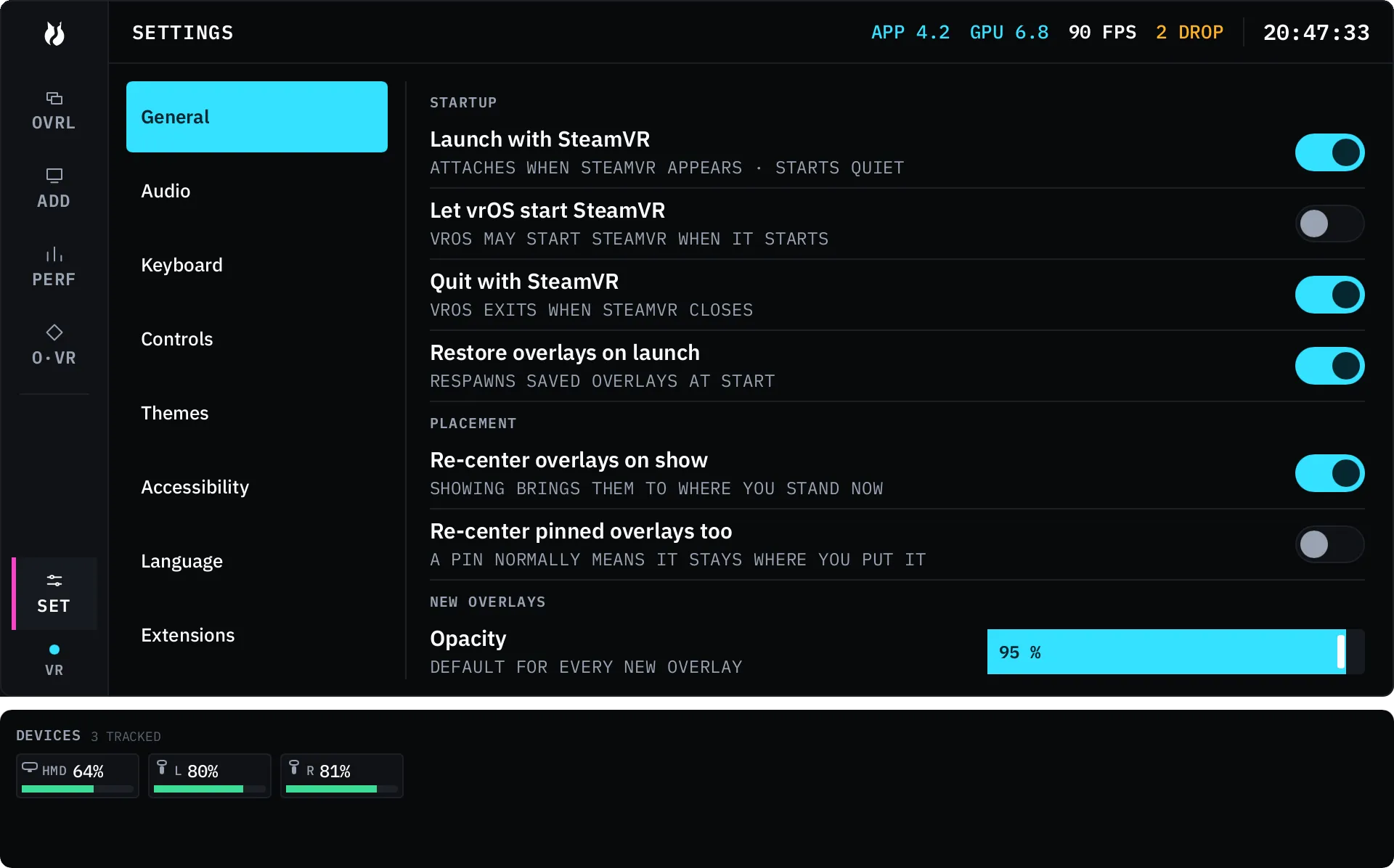
Section titled “General”Startup. Launch with SteamVR. Let vrOS start SteamVR — off unless you turn it on, and the row says so: with it on, vrOS may start SteamVR when it starts. Quit with SteamVR. Restore overlays on launch.
New overlays. Opacity 1–100%, width 0.1–10.0 m, distance 0.1–5.0 m. A panel you spawn from ADD arrives with exactly these.
Clock. 24-hour or 12-hour. 24-hour is the default in every language.
Dash controls. Three toggles — size slider, curve slider, 4K quality — that reveal those controls on the overlay rows, on the Dash and in the desktop list at the same time. 4K quality also needs a source at least 3840 px wide.
Performance area. Layout, the I/O monitor, the devices band, and whether that band sits above or below.
Audio routing
Section titled “Audio routing”Audio is routed by role, not by picking a device each time something plays. Three roles, each with a device, a volume from 0 to 100, and a TEST button that plays a chime down the real path.
| Role | What uses it |
|---|---|
soundboard |
The default target for sounds an extension plays |
mic |
The virtual-mic feed — point it at a VB-Cable-class device to reach your microphone mix in VRChat or OBS |
ui |
Keyboard and interface feedback |
If the device a role points at is gone — unplugged, or renamed by a driver
update — the row turns amber and says so. vrOS never quietly substitutes
another output. The exception is ui, which follows your system default
whenever you have not overridden it, so keyboard feedback survives unplugging
a headset DAC.
Keyboard
Section titled “Keyboard”The settings half of the VR keyboard. The layouts themselves, and how typing works, are on the keyboard page.
| Row | Values |
|---|---|
| Layout | The six built-ins, plus any layout you have made |
| Auto show | On / off |
| Persist until blur | On / off |
| Hide on click away | On / off |
| Repeat delay | 100–2000 ms |
| Repeat rate | 15–500 ms |
| Modifier mode | One-shot / toggle / timeout |
| Modifier timeout | 500–10000 ms, active only in timeout mode |
| Shift double-tap lock | On / off |
| Layout switcher | On / off |
The built-ins are English at 70%, 80% and 100%, Korean 두벌식, Japanese romaji, and the Japanese 12-key flick board.
Controls
Section titled “Controls”Movement hand, left or right — the locomotion stick never adjusts an overlay you are holding.
Then the grab rows: face me on grab, face my free hand (available when face-me is on), face-me minimum distance 0.50–2.00 m, stick push/pull, stick resize, hand-depth resize, invert hand resize, lock position while resizing, hand resize speed 0.25–2.00, and disable joystick resize.
Hide / show all and Hide / show dash are the two summon chords, one group each. Both start with a Binding row: it shows the words SteamVR reports for the bound input right now, and EDIT IN STEAMVR opens SteamVR’s binding editor. On a desk with no runtime up, that button is disabled rather than hidden. Under it, the hand that wears the pose, then the pose list — the seven poses, plus NONE (the tap alone summons) and DISABLED. Out of the box, hide / show all is NONE on the left hand and the Dash chord is the left finger gun. Picking the same pose and hand for both says so in a line under the list: the Dash chord wins every tap.
Right click is a pose too, and its list is eight rows — the seven poses and DISABLED, with no NONE. Hold the pose on one hand and the other hand’s trigger clicks right. It defaults to POINT on either hand.
Pose detection holds the grip threshold, 0.05–0.90, default 0.25 — how firm a grip reads as a curled hand on controllers without finger tracking.
Themes
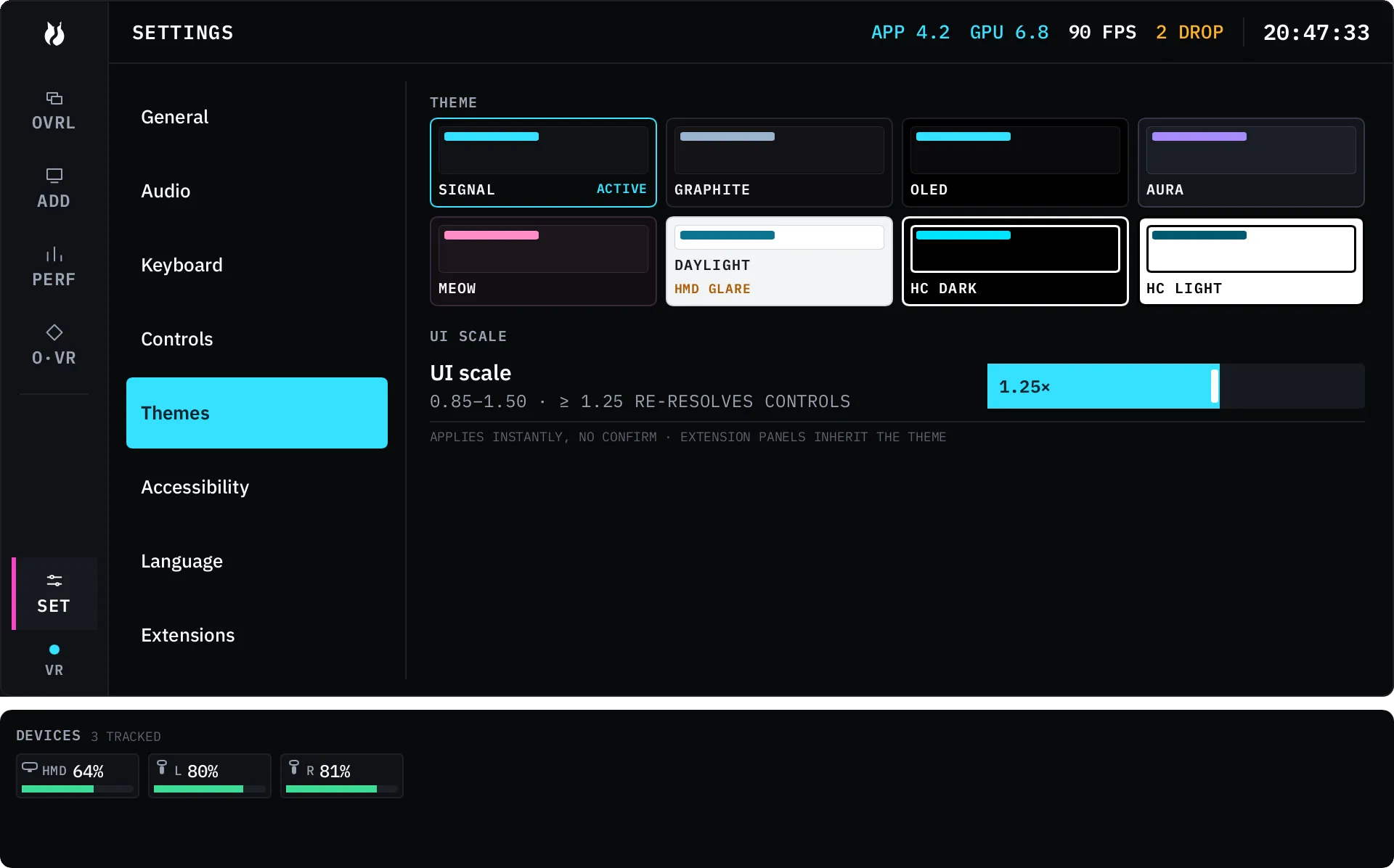
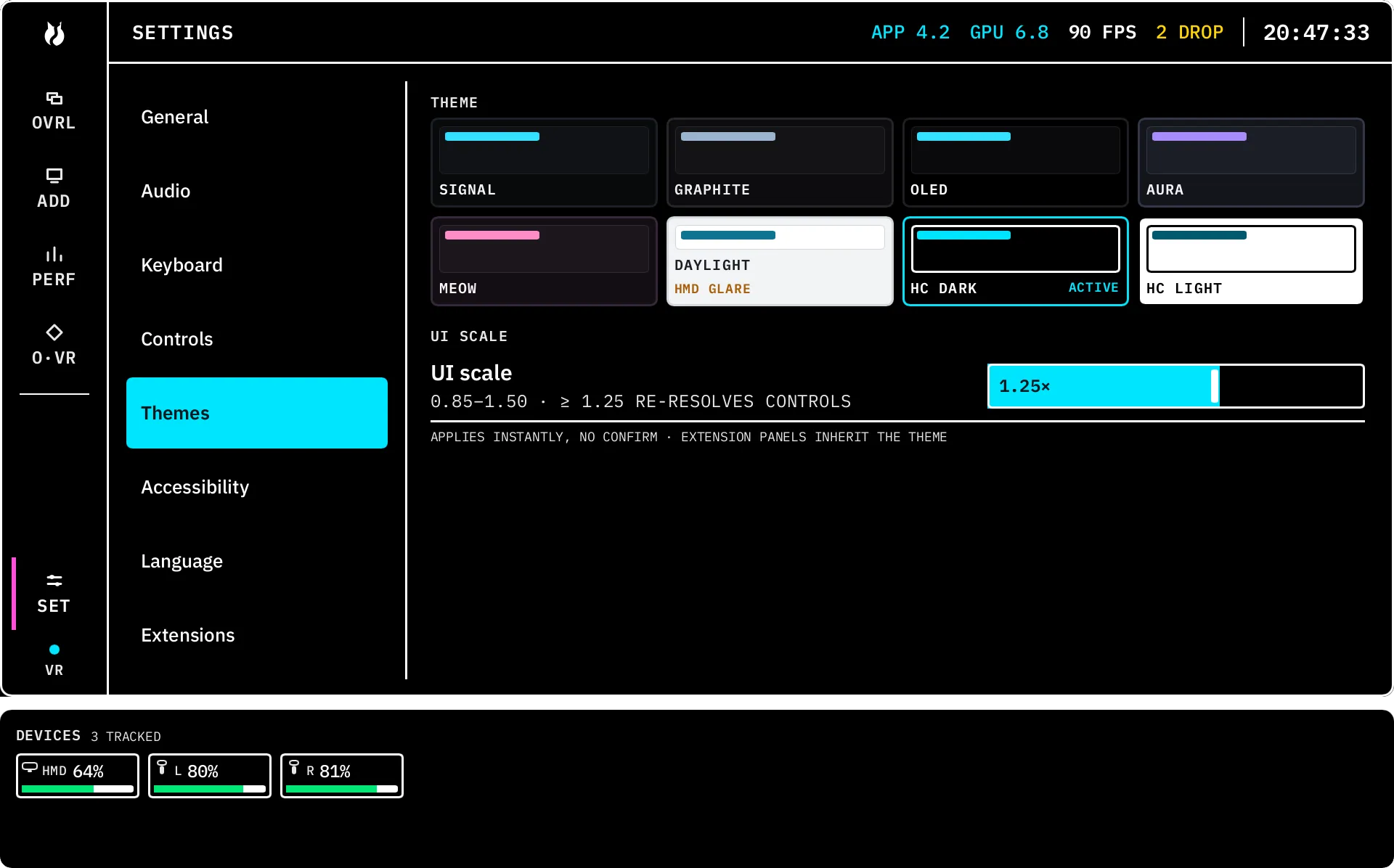
Section titled “Themes”Eight themes: SIGNAL (the default), GRAPHITE, OLED, AURA, MEOW, DAYLIGHT, HC DARK, HC LIGHT. Each tile is drawn in its own tokens, so the swatch is the theme. One tap applies it live, and extension panels inherit whatever you pick.
DAYLIGHT is a desktop-first light theme; its tile carries a glare warning, and applying it in VR shows one. HC DARK and HC LIGHT are the high-contrast pair — 3 px borders, no low-contrast text tier, and a focus ring that inverts.
UI scale sits beside the tiles, 85% to 150% in steps of 5. It is the same setting as the one in Accessibility: one value, two places to reach it.
Accessibility
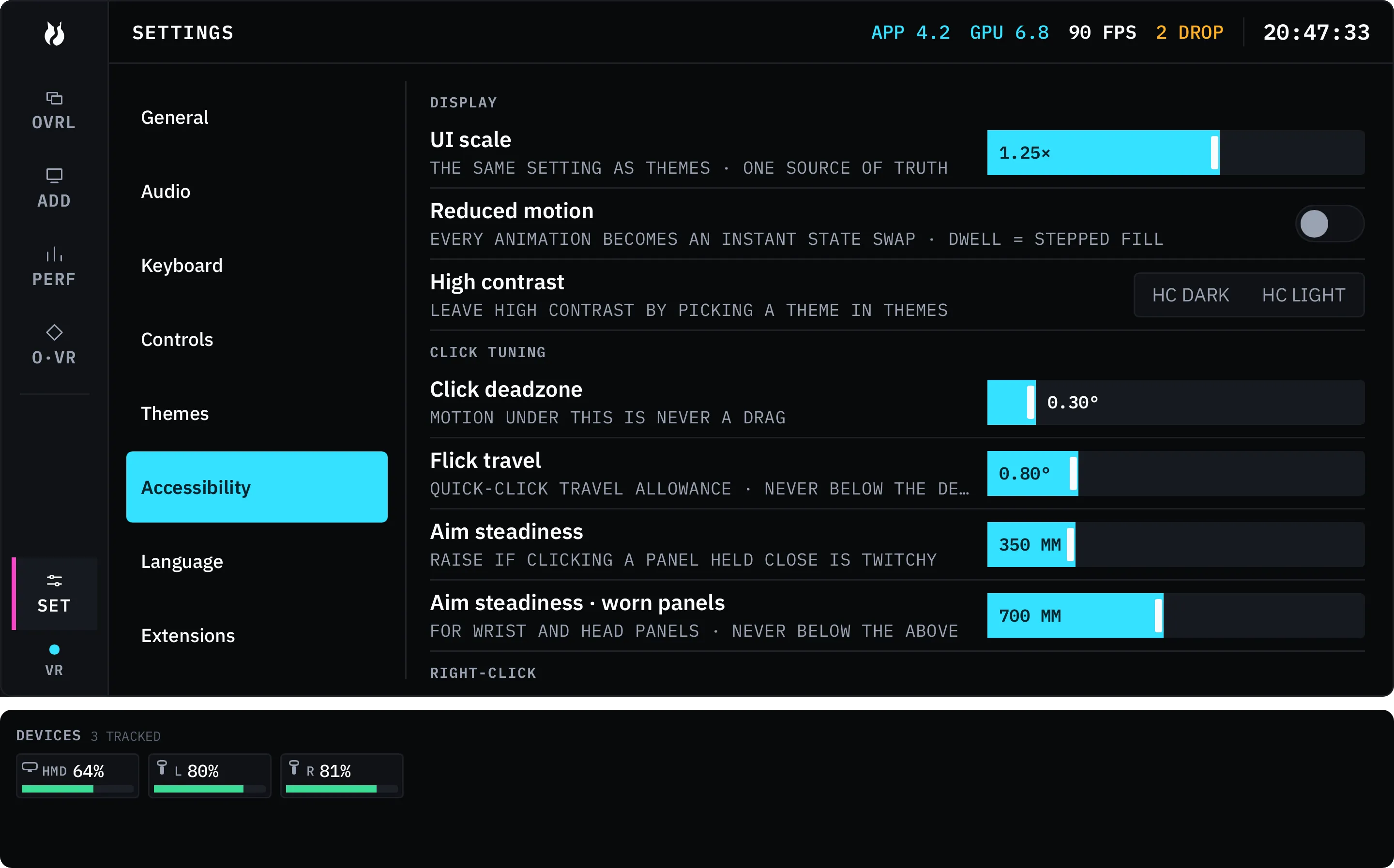
Section titled “Accessibility”UI scale and reduced motion. With reduced motion on, every animation has a still equivalent — toasts appear instead of rising, a dwell ring fills in four steps, and the one-second hold counts down instead of sweeping.
High contrast is a two-way choice between HC DARK and HC LIGHT, with no off switch: you leave high contrast by picking another theme in Themes.
Click tuning. Click deadzone, 0.05°–2.00°, default 0.30° — how far your laser may travel before a press counts as a drag instead of a click. Flick travel, 0.10°–3.00°, default 0.80° — the travel a click gesture is allowed inside the hold window. Both are angular, so they mean the same thing on a small panel at arm’s length and a big one across the room.
Right-click. Long-press right-click is off by default, and turning it on trades away the stationary press-and-hold left drag — the row says so before you flip it. Long-press time is 300–1500 ms, default 650 ms. The pose modifier is the other way to right-click, and it lives in Controls.
A footer lists what is always on and never a setting: status words beside colour, focus rings, gamepad reachability, and the 24 px text floor.
Language
Section titled “Language”Nine locales, listed as endonyms in their own scripts: English, Deutsch, Español (Latinoamérica), Français, Italiano, 日本語, 한국어, Русский, 中文(简体). The picker shows a globe and no flags — a flag is a country, not a language.
One tap switches. The interface reloads in place and your overlay layout is untouched. If the language you picked has a built-in keyboard and your active layout is not it, an offer appears under the list; one tap takes it, and ignoring it changes nothing. Numbers, units and the clock follow the language.
Extensions
Section titled “Extensions”Extensions arrive disabled, with the capabilities they ask for shown as chips. Enabling one walks a consent screen that names each grant in plain language. Grants are per capability and revocable from this pane. If a new version asks for something the old one did not, you are asked about that difference only, not the whole set again.
The split matters: bus, overlays, capture, audio, and secrets are
enforced by the host — a call an extension was not granted is refused at the
wire. osc and network are disclosure. vrOS cannot stop a native process
from opening a socket, so instead it tells you which extensions said they
would. See how extensions work.
Where the values live
Section titled “Where the values live”Everything on these panes is one line in config.toml, under
%APPDATA%\vrOS\ on Windows and ~/.config/vros/ on Linux. vrOS watches that
file: an edit you make in a text editor applies without a restart. A value
outside its range clamps to the nearest legal one, and a malformed file warns
once and leaves the running values alone.
Themes
Section titled “Themes”