
Troubleshooting
Find the symptom, not the subsystem. If nothing below matches yours, skip to Still stuck.
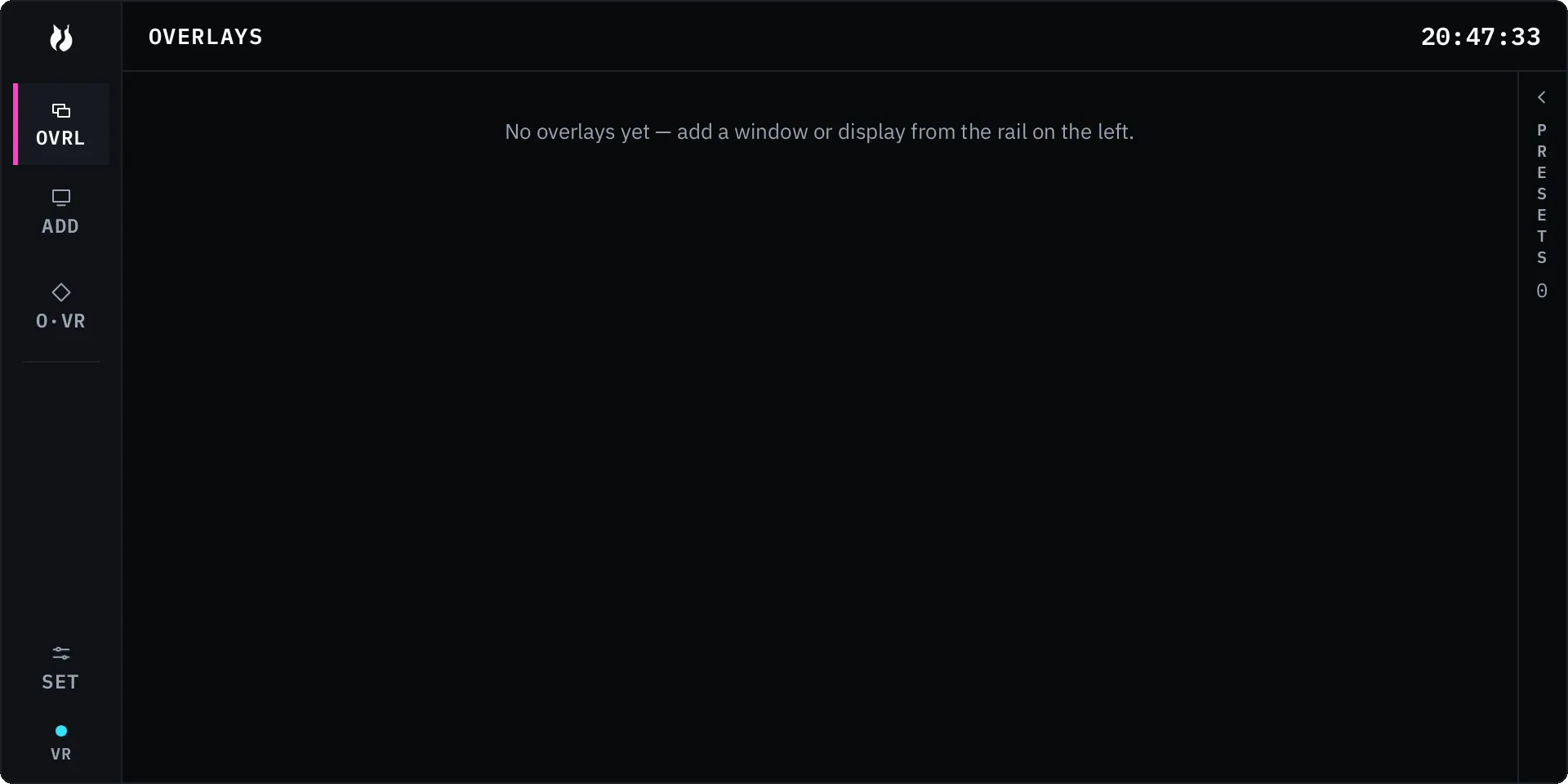
The Dash does not appear
Section titled “The Dash does not appear”vrOS shows the Dash when its summon action fires. The input that fires it does not live in vrOS: SteamVR owns controller bindings, and vrOS only registers the actions.
- Open SteamVR, then Controller Bindings. vrOS should be listed for your controllers, with the bundled default binding loaded.
- In VR, open Settings and go to Controls. It shows the live binding vrOS is currently seeing, and EDIT IN STEAMVR opens SteamVR’s binding UI on the right page. In the desktop window those rows are empty and the button is disabled — the readout needs a running VR session.
By default the bound input is a double-press. A plain double-press hides and shows everything; holding a hand pose while you double-press toggles the Dash on its own (the shipped default pose is the finger gun, on your left hand). The chords, the pose, and the hand are all settings in Settings → Controls. When one press satisfies both chords, the Dash chord wins — so the Dash can always be summoned back.
vrOS attaches to SteamVR when SteamVR is already running. It does not start it. See the FAQ.
Everything vanished, and SteamVR is fine
Section titled “Everything vanished, and SteamVR is fine”That is hide-all. Double-press again to bring it back. Pinned overlays are exempt and stay visible, and showing a single overlay from the Dash list or the desktop window reveals just that one. Hide-all is presentation only: it is never saved, and anything that restarts the VR side brings your overlays back showing.
Overlays vanished after a SteamVR crash
Section titled “Overlays vanished after a SteamVR crash”They come back on their own. Everything that touches the VR runtime, the GPU, or a capture API runs in a separate supervised child process, and all durable state lives in the core app. When the runtime faults, the core is untouched: the child detaches, waits for the runtime to return, and re-attaches. If the child itself dies, vrOS restarts it with backoff and rebuilds it from core state — in place, with your layout.
The one case where they do not come back is a crash loop. After repeated failures in a short window vrOS stops restarting the child and surfaces the error in the tray and the desktop window instead of thrashing. Read the error there.
The panels are there but nothing reacts
Section titled “The panels are there but nothing reacts”Check that SteamVR itself is fully attached. A headset connected by display cable but not USB leaves SteamVR half-attached: panels render, tracking and input never arrive, and the Dash looks like a still image. It is the most common cause of a dead-looking Dash. Confirm SteamVR reports the headset and the controllers as ready before looking anywhere else.
Clicks or keystrokes go to the wrong place
Section titled “Clicks or keystrokes go to the wrong place”vrOS runs one input arbiter, and its job is to get out of your way. The live owner is shown as a chip on the Dash: VR, HANDOFF or DESKTOP.
- Touching your physical mouse or keyboard hands authority back to the desktop immediately. A desk bump sets a short lockout; sustained, deliberate mouse motion sets a longer one.
- VR takes authority back only when you deliberately pull the trigger on an overlay. Controller motion alone never reclaims it.
- Typing goes to the last capture panel you clicked. If keystrokes land in the wrong window, click the panel you meant with the trigger first.
- Just after you type on your physical keyboard, the VR keyboard stays visible but inert for a few seconds. During that lockout its keys do nothing at all, rather than half-working. Click a panel with the trigger to reclaim.
The full model is in Input and The VR keyboard.
Clicks do nothing on one window in particular (Windows)
Section titled “Clicks do nothing on one window in particular (Windows)”Windows refuses injected input into a window running with higher privileges than the sender. vrOS runs non-elevated on purpose and never elevates itself, so a window running as administrator will not accept clicks or keys from a panel. The source picker badges those windows, so you can see it before you capture. Run that app without administrator if you can.
A captured window shows an amber badge
Section titled “A captured window shows an amber badge”Amber means the source window is minimized at the OS level. Capture stops, the panel holds its last frame flat, and it repaints zero times. Use RESTORE — offered on the overlay row and on the row in the add list — which restores the window and re-lists the source once it settles.
If the source is gone rather than minimized, the panel says the source is lost: the window closed. Remove the overlay (two steps, with CONFIRM and CANCEL) and capture it again.
Recalling a saved preset restores minimized sources first and then applies the layout, so a preset does not come back full of frozen panels.
An overlay came back somewhere unexpected
Section titled “An overlay came back somewhere unexpected”By default, showing a world-anchored overlay brings it to where you are standing now and keeps the arrangement you gave it. That covers a row toggle, a preset recall, coming back from hide-all, and the restore at start. A pinned overlay keeps the exact spot in the room where you put it. Both behaviours are switches in Settings → General, next to the new-overlay defaults and whether overlays are restored at all on restart. Per-overlay RECENTER pulls one panel back to you. See Overlays and Playspace.
Audio is coming out of the wrong device
Section titled “Audio is coming out of the wrong device”Settings → Audio routing maps one output device per channel: soundboard playback, the virtual-mic feed, and UI and keyboard feedback. Empty means the system default output.
A configured device that is not connected shows as lost in the pane. Sound on that channel waits instead of moving your audio somewhere else behind your back. The UI channel is the single exception — it falls back to the system default, because keyboard feedback going silent is worse than it moving. Plug the device back in and the channel rebinds; a change of system default device is picked up too, with no restart. Volume 0 is muted; there is no separate mute switch.
The performance numbers look wrong
Section titled “The performance numbers look wrong”Start at Performance. Two readings mislead people most often.
Driver time. Each core cell carries a narrow companion bar for DPC plus interrupt time. It is absent when driver time is zero, which on a healthy machine is most core-seconds. The two bars run different axes — the core bar is 0 to 100 percent, the companion bar 0 to 25 — so the thin bar can draw taller while standing for a smaller number. Read the exact figures from the readout the cell opens on hover or focus: core, busy percent, DPC, ISR. A core sitting at several percent DPC continuously is doing deferred driver work, not application work. On one test rig a core read 9.23 percent busy with 4.62 percent of that DPC — half of that core’s time was a driver, and a process list would never have said so. On Linux the same two quantities come from irq and softirq.
The top process and the I/O row. Both come from one system-wide process-table read every two seconds, taken only while the Dash is shown, and the name is the executable. Turning off the I/O monitor in Settings → General hides both and stops the read.
The area’s arrangement (strips, classic, console, magnified) and the DEVICES band are also in Settings → General.
Linux notes
Section titled “Linux notes”Capture goes through your desktop’s screen-sharing portal, so the picker you see is your desktop environment’s own dialog. Cancel it and no capture starts.
If you stream wirelessly to a Quest-class headset from a Linux host, Steam Link is broken upstream on Linux hosts. Use WiVRn or Monado, ALVR, or a wired headset.
Where your settings live
Section titled “Where your settings live”%APPDATA%\vrOS\config.toml on Windows, $XDG_CONFIG_HOME/vros/config.toml on Linux. The file is created the first time you change a setting; before that, missing means defaults.
Still stuck
Section titled “Still stuck”- Discord — fastest, and other users are there.
- support.vros.cat — files a bug report on the public tracker, with a number you can follow.
Include your OS, your headset, which VR runtime you are on (SteamVR, or Monado and WiVRn), and what you did just before it went wrong. vrOS has no telemetry and sends no crash reports, so nothing about a problem reaches us unless you send it.