
Desktop app
vrOS is a desktop application first. VR is a presentation layer that attaches when a headset and a runtime are there, and detaches when they are not. The window on your monitor is not a launcher for the VR part — it is the same app, drawn for a mouse.
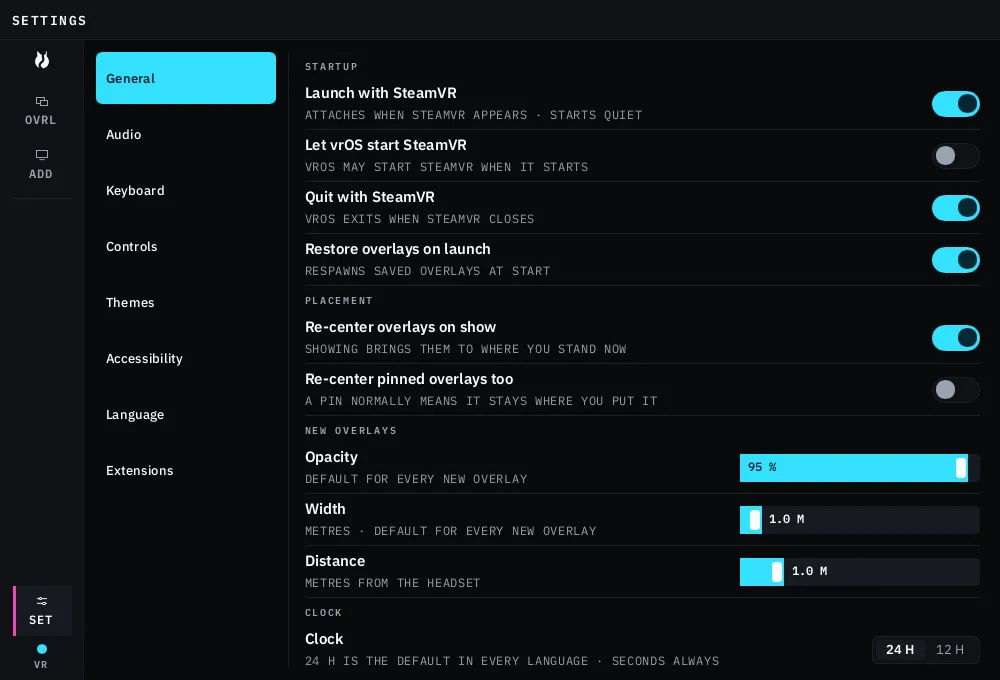
That means everything you can configure in the headset, you can configure at your desk, and the other way round. Nothing in Settings is VR-only.
It is the Dash, at desk density
Section titled “It is the Dash, at desk density”Element for element, the desktop window is the Dash. The same rail down the left: the mark, the overlay list, ADD, a divider, any tabs your extensions add, then Settings pinned at the bottom, with the input chip in the footer. The header names the area you are in. The same rows, the same words, the same order.
What changes is the density. VR sizes are angular — a target has to be big enough to hit with a laser from where you are standing. A mouse is precise, so the desktop halves the spacing scale and gets more on screen.
| In VR | On the desktop | |
|---|---|---|
| Row height | 98 px | 52 px |
| Body type | 28 px | 13.5 px |
| Minimum hit target | 62 px (2.0°) | 28 px |
| Borders | 2 px minimum | 1 px allowed |
| Hover | never the only way to reach anything | tooltips and row actions, each with a right-click or keyboard equivalent |
| Chrome | none — the Dash is a panel in the world | a window, with the input chip mirrored into it |
Hover comes back on the desktop because a mouse has a hover state and it would be silly to pretend otherwise. It never becomes the only path: anything hover reveals is also reachable by right-click or from the keyboard.
What is in the window
Section titled “What is in the window”Overlays. The same list as the Dash, with the same per-row controls — show/hide, pin, lock, passthrough, remove. You can remove a stuck overlay from your desk without putting the headset back on.
Add. The same capture picker. Pick a window or a whole display.
Settings. All eight panes, the same rows at desktop density.
Extension tabs. An extension that adds a Dash tab adds it here too.
The Performance area and the OpenVR playspace module stay in the headset. Both are about what is happening while you are wearing it — a frame graph you read after taking the headset off has lost the thing you were chasing, and the playspace tools need you standing in the space.
One truth, two surfaces
Section titled “One truth, two surfaces”An edit commits once and both surfaces follow. Pick OLED on the Dash and the desktop window re-themes within the same second; pick GRAPHITE at the desk and the Dash follows. Language and UI scale re-apply the same way. No restart, and no surface holding a stale copy of a value you already changed.
The input chip is mirrored into the window for the same reason: it tells you whether VR or the desktop currently owns input, from whichever surface you happen to be looking at. See input and authority.
The window itself
Section titled “The window itself”It is resizable. The minimum is 1000×680 at 100% UI scale, and that minimum grows with the scale, so a 150% interface still has room for its rows.
Position and size are remembered between runs. If the saved rectangle’s centre is no longer on a connected monitor — you unplugged the second screen — it opens in the default place instead of somewhere you cannot reach.
Closing the window asks what you meant: minimize to tray, or quit. Minimize takes focus when the dialog opens, so pressing Enter on an untouched dialog minimizes rather than quitting. Escape, or clicking outside the dialog, cancels the close entirely.
The tray
Section titled “The tray”Show vrOS, About vrOS, and Quit vrOS. Quit from the tray is one click, with no dialog.
About names the version, the VR runtime and UI libraries vrOS is built on, the Rust crates behind it, and the Discord. Any click inside it closes it; so does Escape, or clicking away. Clicking the link opens your browser and closes the popup.
With no headset connected
Section titled “With no headset connected”The desktop app runs on its own. The part of vrOS that talks to a VR runtime, a GPU, or a capture API is a separate supervised process; with no runtime present there is nothing for it to do, and the window does not care.
Starting vrOS never starts SteamVR unless you have turned that on in Settings → General, and closing SteamVR never closes vrOS unless you have turned that on too. Your overlays keep their configuration while the runtime is away and come back when it returns.