
The VR keyboard
The VR keyboard is a real overlay, like any panel you capture. It has its own row in Overlays, and you can grab it and move it.
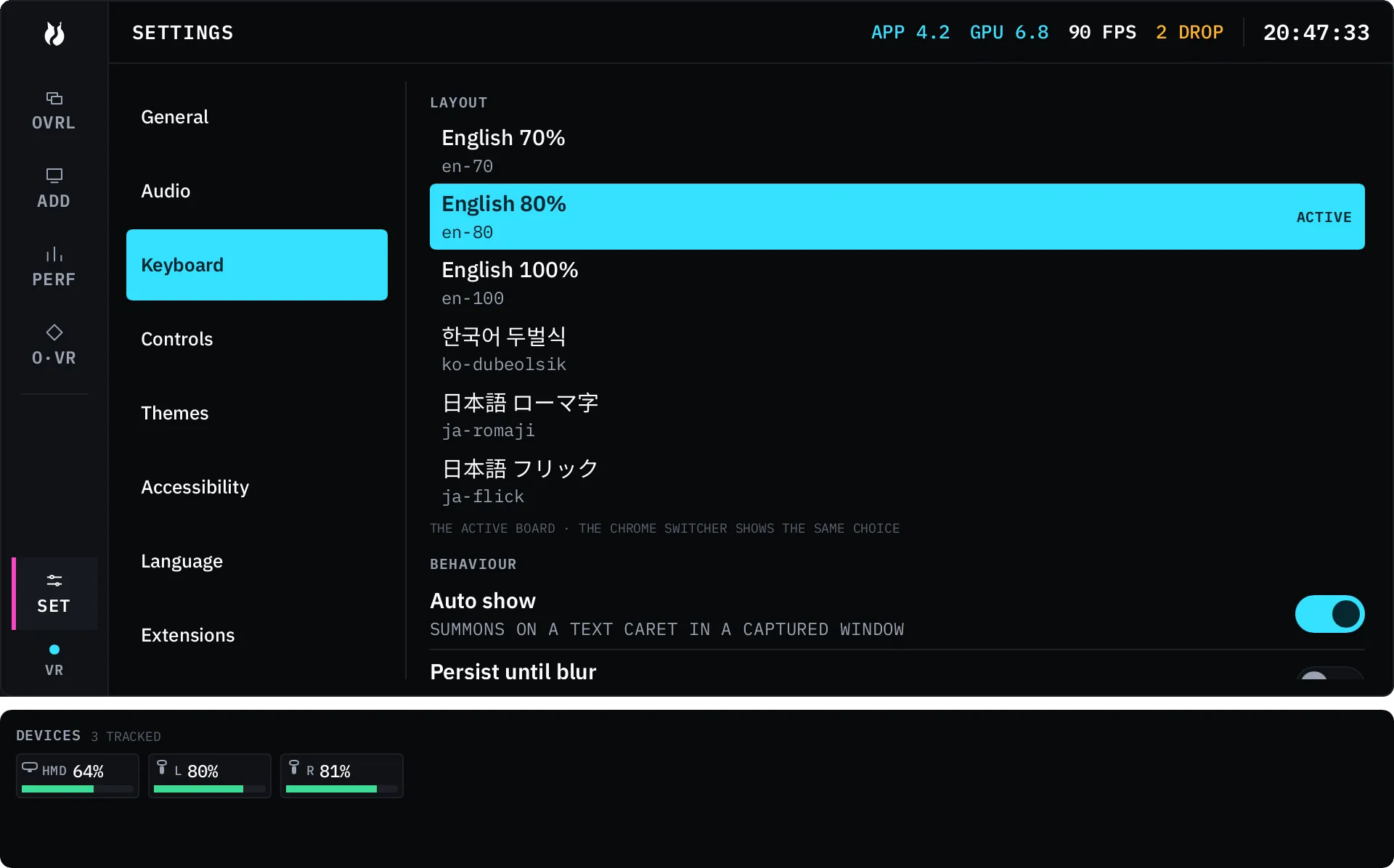
Summoning it, and putting it away
Section titled “Summoning it, and putting it away”There are three ways to bring it up:
- A controller binding. On the shipped defaults, a double-press of a face button on your left controller toggles the keyboard. Which physical button that is depends on your controller profile, and you can rebind it in SteamVR — see Input.
- Its row in the Overlays list, the same as showing any other panel.
- Automatically, when a text field takes focus. That covers vrOS’s own fields and text fields inside captured windows, including a captured window’s child dialogs — a Save As filename box binds the keyboard to that dialog panel. This is the auto-show setting, on by default.
It types into the panel you last clicked, which is also the window the OS considers focused; clicking a capture is the gesture that does both.
By default any trigger pull that is not on the keyboard puts it away, including a pull into empty space. The KEEP chip in the keyboard’s chrome overrides that: a kept keyboard closes only when you close it. If the panel it was typing into disappears, the keyboard goes too.
The first summon places the board below the target panel. Move it, and that panel remembers where you put it for the rest of the session, relative to you rather than to the room. Size sticks the same way; a summon never resets it.
The six boards
Section titled “The six boards”| Board | What it is |
|---|---|
| English 70% | Main block, a separated Ins / Home / PgUp and Del / End / PgDn stack, and a separated arrow cluster. No F-row. |
| English 80% | The same, plus the F-row with PrtSc / ScrLk / Break aligned to it. |
| English 100% | Full size with the numpad, and the same PrtSc trio. This is the default. |
| 한국어 두벌식 | Dubeolsik, built on the 80% frame. |
| 日本語 ローマ字 | Romaji to hiragana, on the 80% frame, plus a かな key beside the spacebar. |
| 日本語 フリック | The 12-key flick board. |
Switch between them with the chips in the keyboard’s own chrome. On a board too narrow to show all six — the flick board fits three — a MORE chip pages through them. You can turn the chips off in Settings, and the composing readout takes their space.
Keycaps are layout data, not interface text, so they do not change when you change vrOS’s language. The interface is translated into all nine locales; the board you type on is a separate choice.
Korean and Japanese
Section titled “Korean and Japanese”Both composing boards show what you are building on the keyboard’s own chrome, not in your document: the syllable in progress (ㅎ, then 하, then 한) with a short tail of what you just committed for context. Your target window never receives provisional text — only finished characters are sent, so an application that has no idea vrOS exists still gets clean input. The tail is context, not a copy of your document: it pops a character when a backspace is delivered, and clears when you switch boards or change target.
Korean is dubeolsik jamo-to-syllable composition, including the compound-final rules that decide whether a consonant closes the syllable you are on or starts the next one.
Japanese is romaji to hiragana, with sokuon and ん handled. The かな key toggles composition off and back on, and an あ or A indicator in the chrome says which mode you are in.
Composition survives an interruption. Start a syllable, touch your physical mouse so vrOS yields input authority, then pull the trigger on the panel to take it back: the next jamo continues the syllable you were in the middle of. The same holds across a focus change. The buffer flushes only when you dismiss the keyboard, switch layouts, or commit.
The flick board
Section titled “The flick board”A 12-key phone-style board. あ か さ た on the top row, な は ま や below it, then ら わ 小 ゛゜, and backspace, space and enter along the bottom. A punctuation key sits in a fifth column, with 、 in the centre and 。 ? ! … on its petals.
Press a key and a cross of five keycaps opens over it — the centre kana plus its four petals, in あいうえお order for that row: press あ and you get い to the left, う up, え to the right, お down. Move onto a petal and release to commit it; come back to the centre and release to take the centre kana; a slide out and back cancels. The popup is anchored to the key you pressed, not to your hand, so nothing moves under you while you choose.
Two hands means two crosses; both can be open at once. The 小 key toggles the kana you just typed between its full and small forms, and ゛゜ cycles it through dakuten and handakuten. This board has no composing readout — the popup is the feedback, and flick emits kana directly with no composer behind it.
What you can change
Section titled “What you can change”In Settings → Keyboard:
| Setting | Default | What it does |
|---|---|---|
| Layout | English 100% | Which board is active. User layouts appear in the same list. |
| Auto show | On | Summon the keyboard when a text field takes focus. |
| Persist until blur | Off | Hold the keyboard until the text box loses its caret. |
| Hide on click away | On | Any trigger pull that is not on the keyboard puts it away. |
| Key repeat delay | 500 ms | How long a held key waits before it starts repeating (100–2000 ms). |
| Key repeat rate | 50 ms | The interval between repeats (15–500 ms). |
| Modifier mode | One-shot | One-shot, toggle, or timeout. |
| Modifier timeout | 3000 ms | Timeout mode only; the modifier releases itself after this (500–10000 ms). |
| Shift double-tap lock | On | Two shift taps within 100 ms lock the layer. |
| Show switcher | On | The layout chips in the keyboard’s chrome. |
Text keys and virtual keys repeat. Modifiers, layer keys and combos never do.
Custom layouts
Section titled “Custom layouts”A layout is a saved document, not a setting: keys, positions, sizes, and what each one does on each layer. Custom layouts sit alongside the built-ins in the layout list, and one can never take a built-in’s identity, so a stock board is always there to fall back to.