
Overlays
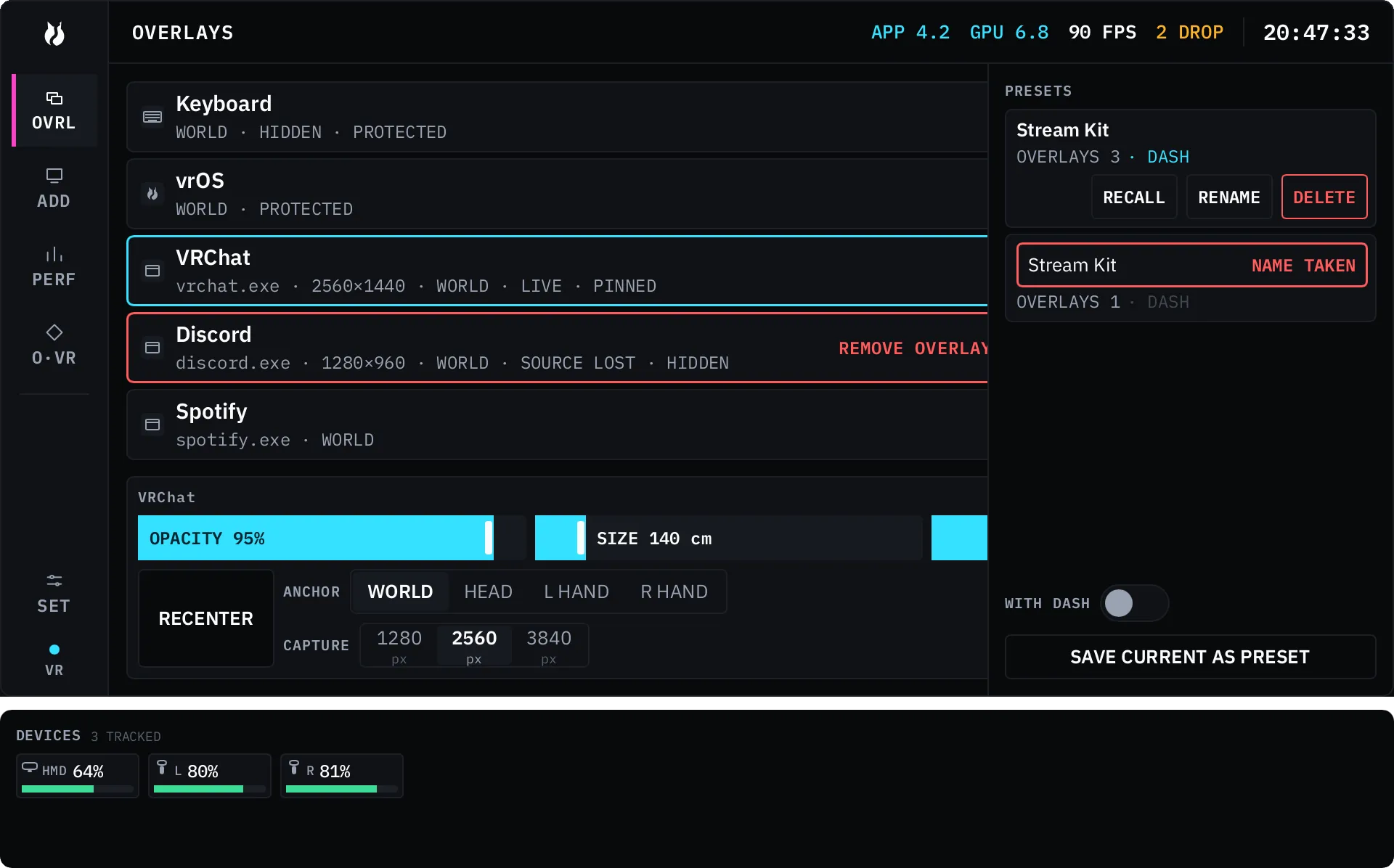
An overlay is one captured source on a floating panel. A source is either a single window or a whole display — displays are first-class here, not a special case. The Overlays area of the Dash lists everything you have placed, gives each panel its own controls, and holds your saved layouts.
Adding a source
Section titled “Adding a source”Creation lives on its own rail tab, ADD, directly below OVRL. The list is sectioned into WINDOWS and DISPLAYS, with a search field above it.
- QUALITY is picked once for the whole list, not per row. It caps the long edge of the submitted texture at 1280 or 2560 pixels. A 3840 option appears only when you turn on 4K quality in Settings → General and the source is actually 3840 pixels or wider.
- REFRESH re-enumerates. Nothing polls in the background; vrOS looks when the area opens and when you press REFRESH.
- A minimized window carries a MINIMIZED badge and a RESTORE button beside it.
- A window running with higher privileges than vrOS carries the note Input may not reach this window. It still captures; your clicks and keystrokes may not land in it.
Press ADD on a row and the panel spawns in front of where you are looking. It is an ordinary saved overlay from that moment on. Defaults for new panels — opacity, width in metres, distance from the headset — live in Settings → General under NEW OVERLAYS.
The list and the quick cluster
Section titled “The list and the quick cluster”Each row is one overlay: its icon, its name, and a status line that spells out every toggle in words. At rest the row’s controls collapse to a single cog; hovering the row, or focusing it, reveals the cluster. It is always in the same order.
| Control | What it does |
|---|---|
| Show / hide | Takes the panel out of the world without deleting it. |
| Pin | The panel survives HIDE / SHOW ALL, and is left where you put it when overlays are re-centered on show. |
| Lock | Holds the panel in place. The grab engine refuses it as a target and your ray grabs through to whatever is behind it. |
| Passthrough | The laser ignores the panel entirely. Useful for something you want to read but never click. |
| Remove | Deletes the overlay. Two steps — see below. |
The detail card
Section titled “The detail card”Selecting a row opens a card underneath it with the panel’s values.
| Control | Range |
|---|---|
| OPACITY | 40 to 100% |
| SIZE | Panel width, 10 to 1000 cm |
| CURVE | 0 to 100% |
| RECENTER | Brings the panel back in front of you, the same placement a new one gets |
| ANCHOR | WORLD, HEAD, L HAND, R HAND |
| CAPTURE | The resolution cap, as on the ADD tab |
SIZE and CURVE are hidden by default — turn them on in Settings → General
under DASH CONTROLS. RECENTER, ANCHOR and CAPTURE rest behind a … strip at
the bottom of the card and open when you move onto it.
Dragging a slider previews live on the panel itself; the value commits when you let go. A control the overlay cannot accept stays visible and disabled rather than silently doing nothing — a vrOS surface has no capture to cap, and RECENTER on a hand-anchored panel is skipped rather than guessed at.
Moving a panel
Section titled “Moving a panel”Grab a panel with the grip input and move it with your hand. Settings → Controls adds the rest if you want them: the other thumbstick to push it away or pull it closer, stick resize, grip plus trigger for hand-depth resize, and whether a grabbed panel turns to face you or your free hand.
Locked panels refuse the grab. Exact bindings are set in SteamVR under Controller Bindings; Settings → Controls shows the live readout and an EDIT IN STEAMVR button.
Removing a panel
Section titled “Removing a panel”Remove is a two-step action. Pressing it arms the row: the border turns red, the row reads REMOVE OVERLAY? with CONFIRM and CANCEL, and it says AUTO-CANCEL 5S. Focus lands on CANCEL, never CONFIRM. Escape disarms it, and if you do nothing it disarms itself after 5 seconds.
The Dash itself appears in this list, because that is how you recover a Dash you have lost. It can never be removed and never be made passthrough — both controls render dimmed with PROTECTED in the row’s status line, rather than looking pressable and doing nothing.
Minimized and missing sources
Section titled “Minimized and missing sources”If you minimize a captured window at the OS level, its row swaps the cluster for an amber MINIMIZED badge and a RESTORE button. The panel costs zero repaints while it is minimized — there is nothing to draw.
If the source goes away entirely, the panel becomes a placeholder reading Source not found — waiting for it to return. Nothing is deleted; when the window comes back, so does the picture.
Layouts
Section titled “Layouts”Saved layouts, listed as PRESETS in a drawer on the right edge, bring a whole arrangement back at once.
- SAVE CURRENT AS PRESET snapshots every overlay you have placed, with all of its state — position, size, opacity, curve, anchor, visibility, capture identity and quality cap — plus whether its source was minimized at the time. WITH DASH is an opt-in that also stores your Dash placement.
- A preset is a snapshot, not a reference. Editing or deleting a live overlay afterwards never changes what the preset will restore.
- RECALL restores minimized sources first, then materializes the members in their saved stacking order. A member that matches a panel you already have is updated in place instead of duplicated. A member whose window is gone comes back as a source-lost placeholder rather than being silently dropped. The header names the layout you restored.
- RENAME needs a name nothing else is using; a collision is refused
visibly rather than overwriting. New presets name themselves
Layout 1,Layout 2, and so on until you change them. - DELETE is the same two-step armed action as removing an overlay, and it only removes the preset — never the live panels.
A save takes everything you have placed at that moment. There is no way to save a subset, so arrange the set you want before you save it.
Whether your panels come back on their own at launch is Settings → General → STARTUP → Restore overlays on launch. Whether showing them brings them to where you are standing now is under PLACEMENT.
Not shipped yet
Section titled “Not shipped yet”Crop — trimming a captured source down to a region — is in the design and is not in the product. There is no way to crop a panel today.